Save Equip Records
- Kimberly Cruz (Unlicensed)
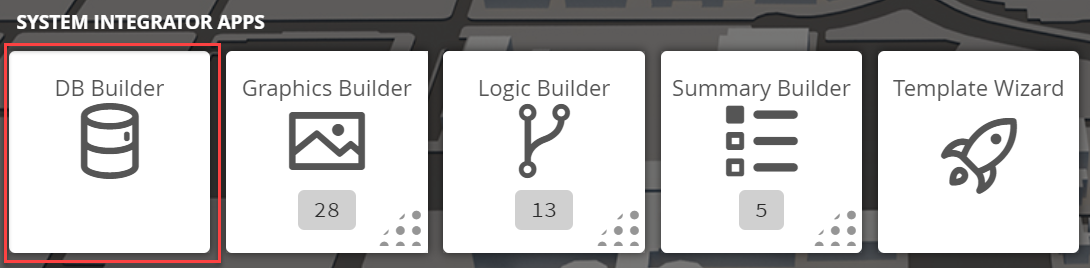
1. The user will have to select on the DB Builder application which is under the System Integrator section
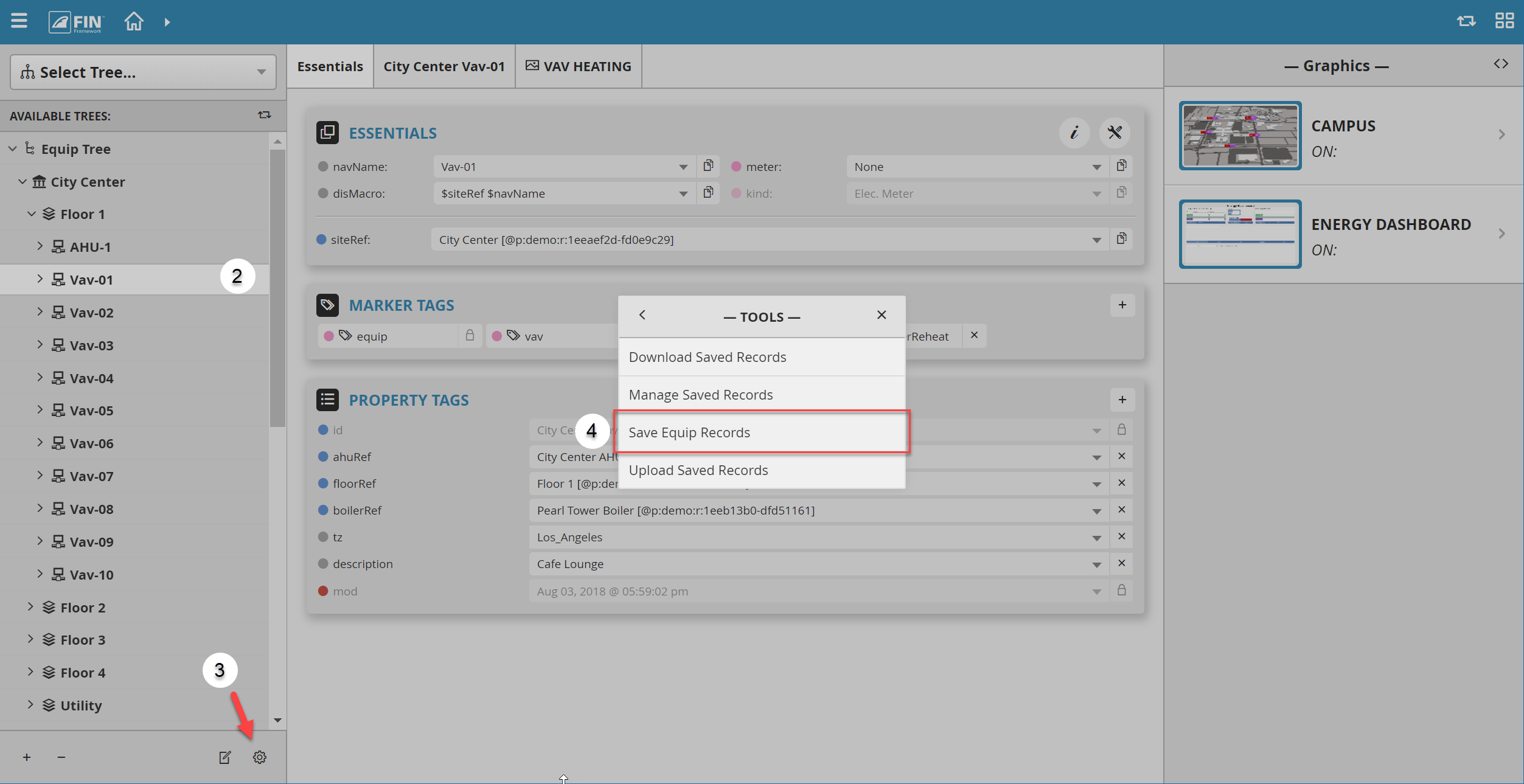
2. Once inside, the user has to navigate towards the DB Builder Tree
- The user will select a type of available site, floor, or equip(s) to access the tool
3. Once the user has made a selection, the user will have to use the Tool button  which is located on the bottom right
4. The user will be prompted with a pop-up called Tools where the user will have to navigate to the following: Create Batch Records > Save Equip Record
How to Use
In the popup window called Save Equip Template the user can select which equip record to save from the FIN Stack platform.
1. In this case, the user will be saving a equip record called City Center AHU-1.
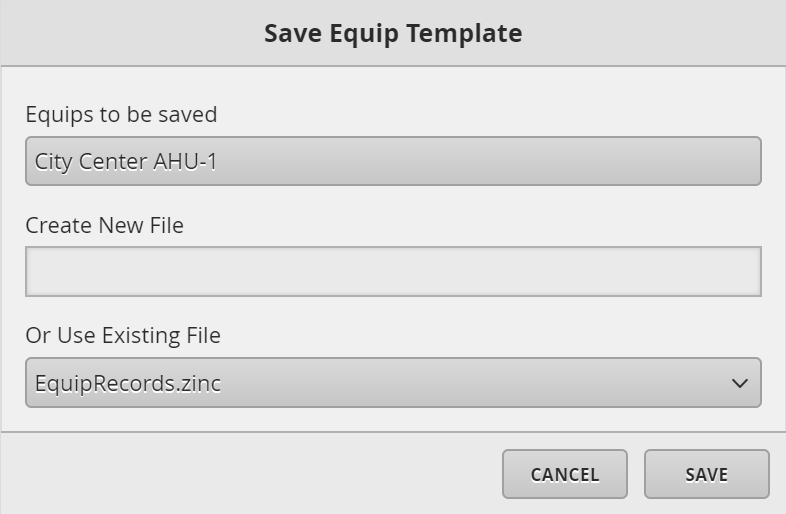
The available options on the Upload Saved Record window:
- Equips to be Saved: Here the user will be displayed a list of equips that were selected prior to selecting on the tool
- Create New File (Optional): The user has the option to rename the file's name
- Or User Existing File: The file(s) displayed are existing saved templates which the user can overwrite
2. Once the user has filled out the form, they can select on the Save button to complete the action.
3. Once selected, the form will close itself indicating that the file has been overwritten with the latest changes.